Network Requirements for 4K Streaming and Whole-Home AV
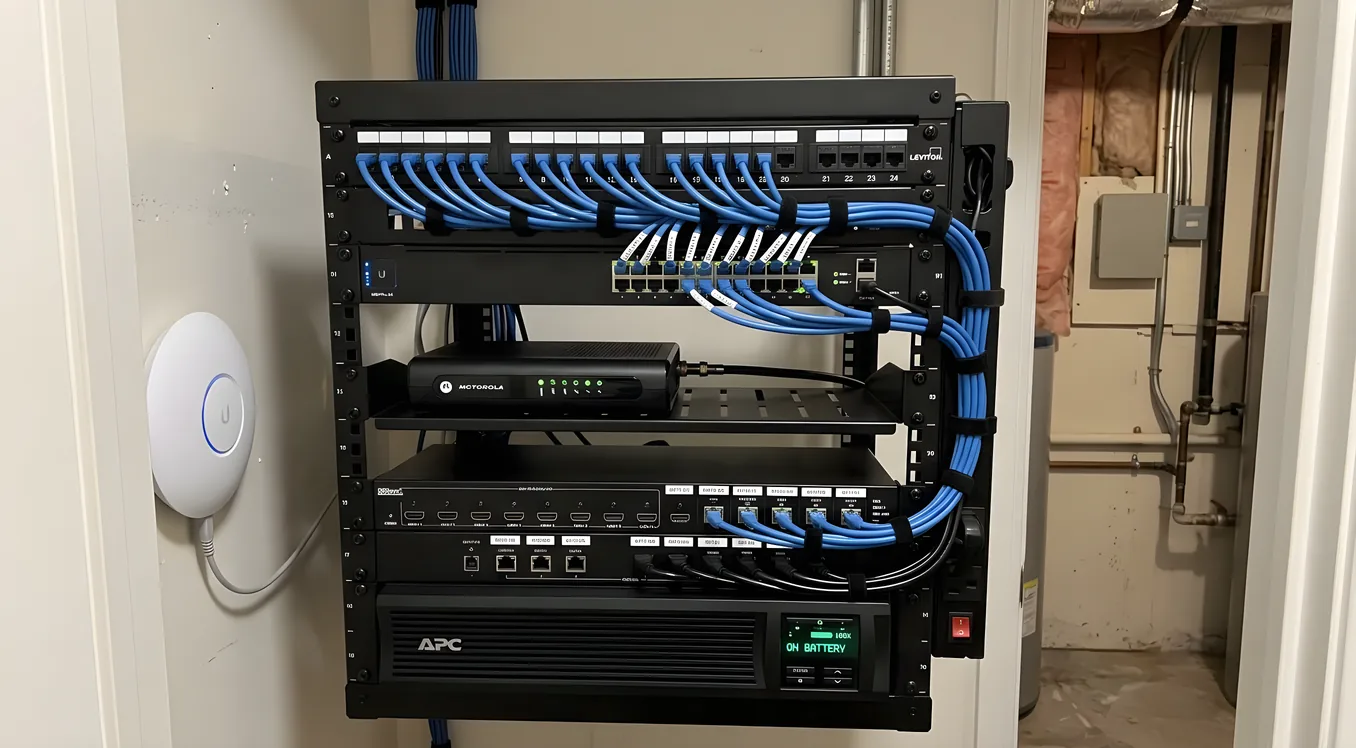
A 4K HDR stream from Netflix or Apple TV+ requires 25 Mbps of sustained throughput per screen. An 8K stream pushes that number past 80 Mbps. In a house where three people are streaming at once while someone else is on a video call, your home theater network requirements stop being a background concern and become the single biggest factor in whether your setup works.
This guide covers every layer of that network: the internet plan you need, the wiring strategy, the right router hardware, how to segment devices for reliability, and the specialized switches required for AV over IP distribution.
Internet Speed: What the Numbers Actually Mean
ISPs sell headline numbers that rarely match sustained throughput under real-world conditions. For a household running two to three simultaneous 4K streams plus normal internet traffic, a 200 Mbps symmetrical plan gives you enough headroom that you are not constantly bumping against the ceiling.
Here is a practical bandwidth budget for a four-person home:
- 4K HDR stream x3: 75-120 Mbps
- 8K stream (future-proof): 80 Mbps single stream
- Video calls x2: 10-20 Mbps
- Background traffic (updates, smart devices): 10-20 Mbps
A 200 Mbps plan covers the 4K household comfortably. If anyone in the house is likely to use 8K content or you are planning whole-home AV distribution across six or more zones, step up to 500 Mbps or 1 Gbps symmetric fiber. The per-stream numbers are the reliable part of the equation; your ISP’s actual delivery under peak load is not.
Wired vs. Wireless: The Real Tradeoff
WiFi is convenient. It is also a shared medium where every device on the same channel competes for airtime, and walls, appliances, and neighboring networks all degrade signal quality. For a living room TV connected to a streaming box, WiFi 6E or WiFi 7 will generally perform well enough. For dedicated home theater equipment, network switches, and AV receivers, a wired Ethernet connection is always the right answer.
Cat6 Ethernet rated for Gigabit speeds handles everything a 4K home theater throws at it, and it does so with zero airtime competition and consistent latency. If you are still in the pre-wire or renovation phase, run Cat6 to every TV location, every equipment rack, and every planned access point location. The marginal cost of pulling cable during construction is a small fraction of what it costs to fish wire through finished walls later.
For AV over IP deployments using protocols like SDVoE that carry uncompressed 4K signals, Cat6 is the minimum and a 10 Gigabit switch is required. In those cases, Cat6a (rated to 10GbE at 100 meters) is the correct specification for every run.
WiFi 6E and WiFi 7: Where They Actually Help
WiFi 6E added the 6 GHz band, which is less congested in most neighborhoods and supports the full 320 MHz channel widths that WiFi 7 uses. The practical benefit for streaming is lower latency and more predictable performance in dense environments where 2.4 GHz and 5 GHz bands are saturated.
WiFi 7 adds multi-link operation (MLO), which lets a device maintain simultaneous connections on multiple bands and switch dynamically. For wireless media players and tablets used as control surfaces, this translates to more responsive performance. What it does not do is make wireless equivalent to a direct Ethernet connection for bandwidth-intensive or latency-sensitive applications. The physics of radio transmission still apply: wired backhaul + wired device connection outperforms any wireless chain.
Router Selection: Mesh vs. Traditional
For a single-story home under 2,000 square feet with a central wiring closet, a traditional router from a manufacturer like Ubiquiti UniFi or TP-Link Omada handles the job well and gives you more configuration control. These platforms offer managed switches, VLAN configuration, and quality-of-service controls that consumer routers typically lack.
For larger homes or multi-story layouts, a mesh system with wired backhaul performs reliably. The key phrase is wired backhaul. Mesh systems that relay traffic wirelessly between nodes cut available bandwidth in half with each wireless hop. If an Eero Pro 6E node is passing traffic to a second node wirelessly, that second hop is operating at roughly half the speed of the first. Connect each mesh node to a network switch via Cat6 Ethernet and you eliminate that penalty entirely.
For dedicated home theater installations, Ubiquiti UniFi and TP-Link Omada provide the most flexible platform for separating AV traffic, managing multiple SSIDs, and monitoring per-device bandwidth use. These are not plug-and-play products; they require some configuration knowledge or a professional installer. The consumer alternative is a WiFi 6E or WiFi 7 mesh system from a brand like Eero Pro, with the explicit requirement that all backhaul connections run over cable.
Network Switches: Managed vs. Unmanaged
An unmanaged switch moves packets between devices at wire speed with no configuration required. For a simple home where everything is on a single flat network, an unmanaged Gigabit switch works fine.
A managed switch gives you VLAN support, IGMP snooping, and port-level traffic monitoring. For home theater networks, two features matter most. IGMP snooping controls how multicast traffic is distributed, which is relevant in AV over IP systems that use multicast to deliver video streams across the network. Without it, a 4K multicast stream gets copied to every port on the switch and floods devices that have no use for it. The second feature is VLAN support, covered in the next section.
For AV over IP systems using SDVoE or similar uncompressed transport, a 10 Gigabit managed switch is not optional. A single 4K 60Hz uncompressed stream requires roughly 10 Gbps of bandwidth. At any meaningful scale, 4K AV over IP requires a dedicated 10GbE switch and Cat6a cabling throughout.
VLANs: Separating AV Devices From the Rest of the Network
A VLAN (virtual local area network) divides a single physical network into isolated logical segments. In a home with a substantial AV system and a collection of smart home devices, VLANs solve two problems: reliability and security.
Smart home devices (thermostats, cameras, voice assistants, door locks) are often poorly maintained from a security standpoint, running old firmware with known vulnerabilities. Putting them on a separate VLAN means a compromised device cannot directly access your NAS, streaming servers, or computers. The AV devices on their dedicated VLAN communicate normally with each other and with the internet, but they are isolated from the IoT segment.
From a reliability standpoint, isolating AV traffic means a chatty smart plug or a camera sending a burst of footage does not compete with a 4K stream on the same segment. You define the traffic rules at the router level and the managed switch enforces them.
QoS: Traffic Prioritization That Actually Works
Quality of Service (QoS) lets your router prioritize certain types of traffic over others. Configured correctly, it ensures that a large file download does not cause a 4K stream to buffer, and that a video call gets the bandwidth it needs even when someone is pushing a big upload in the background.
Modern routers implement QoS in different ways. Hardware-accelerated QoS on platforms like UniFi or Omada can handle Gigabit traffic without dropping throughput. Consumer routers often implement QoS in software, which can itself become a bottleneck at high speeds. If your router is handling 500 Mbps or more and has software QoS, test whether enabling it actually improves streaming performance or introduces overhead.
A practical QoS priority order for a home theater network:
- Real-time streaming (RTSP, IGMP multicast)
- Video conferencing
- Interactive web and gaming
- Bulk downloads and uploads
- Background updates and cloud backup
Pre-Wire Planning: Getting It Right Before the Walls Close
Every decision made before the sheetrock goes up costs a fraction of what it costs afterward. A comprehensive pre-wire for a home theater network includes:
- Cat6 or Cat6a to every TV location (two runs per location if budget allows)
- Cat6 to every equipment rack and AV receiver location
- Cat6 to every planned wireless access point location on the ceiling
- Cat6 to the primary network switch location in a structured wiring panel
- Conduit from the street entry or utility room to the wiring panel, sized for future cable additions
For a system using AV over IP, plan for Cat6a throughout and a dedicated 10GbE switch in the equipment rack. The cost difference between Cat6 and Cat6a per run is small; the cost of replacing it in finished walls is significant.
Practical Setup Order
Building a home theater network from the ground up follows a clear sequence:
- Establish the wiring infrastructure (Cat6a to all locations)
- Install and configure the core switch (managed, Gigabit or 10GbE)
- Set up the router with VLAN definitions for AV, IoT, and general traffic
- Install and connect access points with wired backhaul
- Connect streaming and AV devices via Ethernet; wireless for mobile devices only
- Configure QoS at the router level
- Test bandwidth at each endpoint before finalizing equipment placement
A network that is properly wired and segmented before media players and AV sources are connected will run reliably for years without manual intervention. One built around WiFi with the intention of fixing issues later rarely gets fixed at all.
What Separates a Working AV Network From One That Does Not
The gap between a home theater network that works and one that does not comes down to three decisions: whether Ethernet runs to the equipment, whether the switch is managed and configured correctly, and whether AV traffic is separated from everything else on the network. Internet speed matters, but it is rarely the actual bottleneck in a well-wired home. The buffering, dropout, and latency problems that people blame on their ISP are almost always caused by wireless hops, shared segments, or undersized switches at the distribution layer.
Get the wiring right before anything else. Everything else can be changed or upgraded. Pulling cable through finished walls cannot.