Projector Mounting and Positioning: Throw Distance, Offset, and Lens Shift
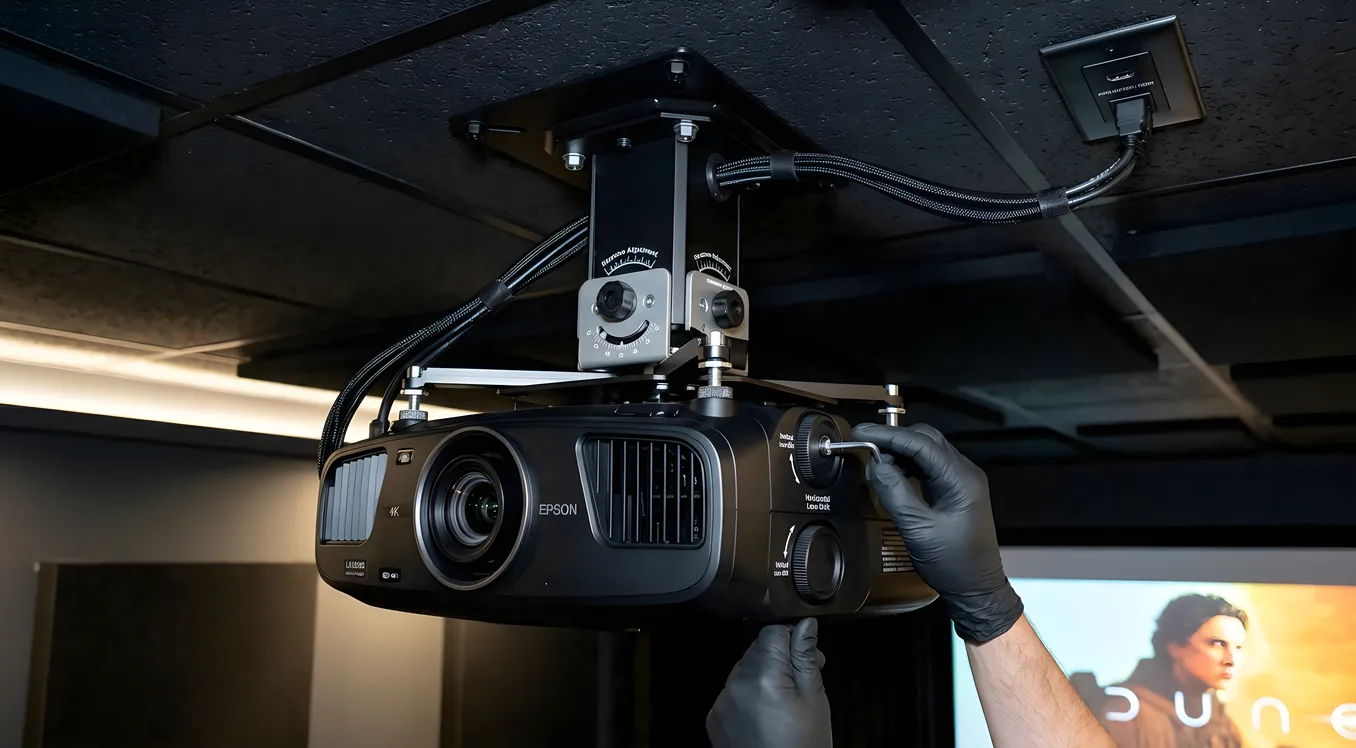
Getting projector placement right the first time saves you from a second trip up the ladder and a lot of wasted cable. The math involved is not complicated, but there are enough interdependent variables (throw ratio, offset, lens shift, image height) that a small miscalculation at any one point compounds into a noticeably off-center image or a screen you cannot fill without keystone correction.
This projector mounting guide walks through each variable in order, from calculating throw distance before you buy hardware to pulling wire through conduit before you close up the ceiling.
How Throw Ratio Works
Every projector ships with a throw ratio specification, expressed as a number like 1.5:1 or a range like 1.2–1.5:1. That number tells you how far the projector must sit from the screen per unit of screen width.
The formula:
Throw distance = Throw ratio x Screen width
A 120-inch 16:9 screen is approximately 104.6 inches wide. With a 1.5:1 throw ratio:
104.6 x 1.5 = 156.9 inches, or about 13.1 feet
A projector with a 2.0:1 ratio on that same screen needs:
104.6 x 2.0 = 209.2 inches, or about 17.4 feet
If your room is 14 feet deep and your screen is mounted on the front wall, a 2.0:1 ratio projector cannot produce a 120-inch image from the back wall. Either the screen size or the projector changes.
Zoom lenses complicate this in a useful way. A 1.2–1.9:1 zoom lens gives you a range of positions to work with rather than a single fixed point. The projector can sit anywhere within that range and still fill the screen, which matters when your ceiling mount position is constrained by a beam or HVAC duct.
For the calculations check out ProjectorCentral’s throw distance calculator{rel=“noopener nofollow”} and the Epson projection calculator{rel=“noopener nofollow”}, both of which let you input room dimensions and return compatible projectors or placement ranges.
Lens Shift: Moving the Image Without Moving the Projector
Lens shift is a mechanical adjustment inside the projector that moves the optical assembly independently of the projector body. Turning the lens shift dial moves the projected image up, down, left, or right while the projector itself stays put.
This matters because you rarely have the luxury of centering the projector lens perfectly in line with the vertical center of the screen. A projector mounted flush to a 9-foot ceiling will throw an image that lands below center unless you shift the lens down, tilt the projector body, or lower the mount.
Tilting the projector introduces keystone distortion. Lens shift does not.
Shift range is specified as a percentage of the image height. A projector with 71% vertical lens shift, like the Sony VPL-XW5000ES, can shift the image center up to 71% of the image height above or below the optical axis. On a screen with a 60-inch image height, that is 42.6 inches of movement before you run into the edge of the shift range.
Most consumer projectors offer more vertical shift than horizontal. A typical mid-range 1080p projector might offer 60% vertical and 15% horizontal. High-end units like the Sony VPL-XW5000ES and the JVC NZ series often offer 80–85% vertical and 34% horizontal, giving installers substantially more flexibility to position the projector off-center from the screen without moving the mount.
A projector with no lens shift (common in entry-level units and most UST projectors) must be positioned so the lens center aligns exactly with a specific point relative to the screen, with no room for adjustment.
Offset: Where the Image Naturally Falls
Offset describes the default position of the projected image relative to the lens center when lens shift is at zero. It is expressed as a percentage of image height above or below the lens centerline.
A projector with 100% offset means the bottom of the image sits at the lens centerline. With the projector on a table at screen level, the entire image appears above the lens. This is standard for table-mounted units so the image clears the projector body.
Most ceiling-mounted projectors are inverted, and a 100% offset unit will naturally throw the image below the inverted lens, which is exactly where you want it: the top of the image near the ceiling mount, the picture filling down toward the audience.
Check your projector’s native offset before committing to a mount height. If the default offset puts the image in a position that requires extreme lens shift to correct, you may be better served by adjusting the mounting location.
Ceiling Mount vs. Shelf Mount
The ceiling mount is the cleaner installation: wire runs inside the wall and ceiling, the projector hangs out of sightlines, and vibration from foot traffic is generally minimal. Chief, Peerless-AV, and Epson’s universal mount line all make ceiling plates that accommodate most projectors. Universal mounts (like the Chief RPA Elite) use a universal mounting pattern with adjustable arms and allow fine-tuning of position, level, and angle after installation. That last point matters, because even experienced installers rarely hit perfect alignment on the first hang.
Ceiling vibration is a real concern in two-story homes. A projector vibrating from foot traffic above produces visible image shake. The standard fix is to mount to a blocking board secured between joists rather than into drywall directly, and to use a mount with rubber isolation between the projector bracket and the ceiling plate. Some installers also use a short extension pipe and add neoprene washers at the ceiling connection point.
Shelf mounts are a legitimate alternative, particularly in rooms where ceiling access is difficult or the owner wants to avoid ceiling penetrations. A rear-wall shelf (recessed flush into a soffit or built out from the wall) keeps wiring short and allows easy access to projector inputs. The drawback is that an exposed shelf adds visual weight to the rear wall, and some projectors require the image to be mirrored in software when rear-projecting, though ceiling-mount mode is the actual concern in a ceiling setup.
For cinema rooms where the projector sits in a separate equipment closet or AV rack behind the seating, a lens with a short throw extension or a projector elevator platform allows servicing without ladder access.
Wiring for a Ceiling-Mounted Projector
HDMI has a practical run length limit. Passive cables hold signal reliably to about 25 feet at 4K/60Hz. Beyond that, use active HDMI cables (the transmitter draws power from the HDMI port) or switch to a fiber optic HDMI cable, which carries 4K/120Hz over 50+ feet without signal degradation. If the run passes near high-voltage electrical wiring, fiber also eliminates interference pickup.
The standard approach for a clean ceiling mount installation:
- Install a 4-inch junction box above the projector location at the ceiling, inside the attic or ceiling cavity
- Pull conduit (1-inch EMT works well) from the projector location to the equipment rack, or stub into the wall cavity and run down to the AV rack
- Pull a fiber HDMI cable, a 12V trigger wire for screen control, and an Ethernet cable through the conduit at rough-in, before drywall is finished
- Leave 10–12 inches of slack at the projector end to allow for the mount’s drop distance and projector position adjustments
Power at the ceiling needs a dedicated outlet. Running an extension cord up to a ceiling-mounted projector is a code violation in most jurisdictions and a fire hazard. Have the electrician place a duplex outlet inside the ceiling box or directly in the ceiling near the mount point.
If you are retrofitting a ceiling mount in a finished room, a surface-mounted wire raceway (painted to match the ceiling) is a cleaner solution than fishing through finished walls.
Our home theater wiring guide covers cable selection and rough-in planning in more detail if you are in the pre-construction phase.
Keystone Correction: Last Resort, Not First
Every projector includes keystone correction, which digitally stretches one edge of the image to compensate for projector tilt. It is quick, it works, and you should avoid it whenever possible.
Keystone correction works by cropping and scaling pixels to simulate a straight image. On a 4K projector, heavy keystone correction can reduce effective resolution to well below 1080p. The picture looks soft, fine text becomes harder to read, and in high-contrast content, color uniformity at screen edges suffers.
The proper solution to a misaligned image is physical adjustment: move the mount, use the lens shift, or tilt the screen rather than the projector. Keystone correction belongs in situations where you cannot correct the geometry any other way, such as a pop-up presentation setup or a room where the projector physically cannot be repositioned.
Ultra-Short-Throw Projector Placement
UST projectors sit 12–24 inches from the screen and project at extreme angles, typically 0.3:1 throw ratio. The manufacturer specifies an exact distance for each screen size, and that distance is not adjustable by much. Position is determined by screen size, not room size.
The placement surface matters significantly. A credenza or TV stand with a level surface is standard. The top of the surface needs to sit at the correct height relative to the screen’s bottom edge. For most ALR (ambient light rejecting) screens designed for UST projectors, that relationship is specified in the installation guide, often within a 1-inch tolerance.
Keep the space on either side of the projector open. UST projectors exhaust heat upward, and objects placed within 6 inches of the exhaust vents cause heat buildup that shortens lamp or laser life.
Because UST projectors cannot use traditional ceiling mounts, they require a different approach to wiring: shorter HDMI runs (the projector sits at furniture height), and no ceiling penetrations required. This makes UST installations significantly less invasive, though the tradeoff is a less immersive seating distance for a given screen size.
For a detailed look at throw ratio ranges and how short-throw and long-throw projectors compare in real rooms, the short throw vs long throw projectors page covers the tradeoffs.
Putting It Together: A Typical Ceiling Mount Calculation
Assume a room 16 feet deep, a 120-inch 16:9 screen, and a projector with a 1.4–1.7:1 throw ratio and 60% vertical lens shift.
Screen width: 104.6 inches Screen height: 58.9 inches
Throw range:
- Minimum: 104.6 x 1.4 = 146.4 inches (12.2 feet)
- Maximum: 104.6 x 1.7 = 177.8 inches (14.8 feet)
With the screen on the front wall and 16 feet of room depth, the projector can sit anywhere from 12.2 to 14.8 feet from the screen, leaving 1.2 to 3.8 feet between the projector and the back wall. That is a workable range.
Screen center height, assuming the screen bottom is 24 inches from the floor: 24 + (58.9 / 2) = 53.45 inches from the floor to screen center
Projector mounted at 9-foot ceiling (108 inches), inverted: Lens center to screen center = 108 - 53.45 = 54.55 inches above screen center
With 60% vertical shift on a 58.9-inch tall image, maximum shift = 0.60 x 58.9 = 35.3 inches. The ceiling position requires 54.55 inches of shift, which exceeds what this projector can provide.
Solutions: lower the screen, use a longer drop extension rod to bring the projector down, or select a projector with higher vertical shift range. The math surfaces that conflict before the projector is mounted.
Getting to the Right Projector First
Placement math only works well if you know the throw ratio and lens shift specifications before committing to a mount location. The projectors guide covers how to read those specs across different projector categories and what to look for in a cinema room versus a casual living room setup.
Run your room dimensions through the manufacturer’s calculator, confirm the lens shift covers the gap between your ceiling height and screen center, plan your conduit before drywall, and then hang the mount. That order saves more time than any shortcut.